⏱ Estimated time: 5 minutes · Works with HubSpot Sales Hub and connected Gmail/Outlook inboxes
Before You Start
HubSpot email signatures apply to emails you send through HubSpot CRM and connected sales tools. Make sure you have permission to edit your personal email settings in HubSpot before proceeding.
Step 1: Create Your Signature with SigCraft
Go to the SigCraft signature builder and create a team-branded signature. Include your name, title, company, contact details, social links, and optional logo or avatar.
Step 2: Copy the Signature HTML
Click the "Copy HTML" button in SigCraft. The compiled HTML uses table-based layouts and inline styles that render reliably in HubSpot-sent emails.
Step 3: Open HubSpot Email Signature Settings
- Log in to your HubSpot account.
- Click the settings gear in the top navigation.
- Go to General > Email (or Profile & Preferences > Email).
- Find Manage email signatures or the Signature section.
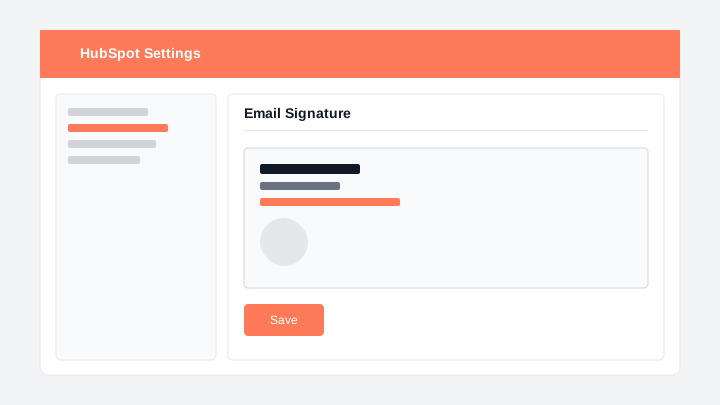
Step 4: Paste Your Signature
- Click into the signature editor field.
- Paste with Ctrl+V (Windows) or Cmd+V (Mac).
- Verify the signature renders with formatting, links, and images intact.
Step 5: Save and Send a Test
- Click Save at the bottom of the settings page.
- Compose a test email from HubSpot or your connected inbox.
- Confirm the signature appears correctly before sending to prospects.
Troubleshooting
Signature formatting stripped on paste
Use Copy HTML from SigCraft, not the plain-text preview. If formatting still drops, paste into a browser first, copy the rendered output, then paste into HubSpot.
Signature not showing on connected inbox emails
HubSpot signatures apply to emails sent through HubSpot. Emails sent directly from Gmail or Outlook use those clients' signature settings instead.
Images not loading in sent emails
Confirm avatar and icon URLs are absolute (SigCraft uses Cloudflare R2). Recipients may need to allow remote images — standard for all HTML signatures.
Frequently Asked Questions
Does HubSpot support HTML email signatures?
Yes. HubSpot's signature editor accepts pasted HTML with inline styles. SigCraft signatures use table-based layouts that render reliably in HubSpot-sent emails.
Will my HubSpot signature apply to sequences and templates?
Your personal signature applies to emails you compose from HubSpot. Sequences and templates may have separate signature settings — check each workflow's configuration.
Can my whole sales team use the same signature design?
Yes. Create one master signature in SigCraft, share the design with your team, and each rep pastes it into their own HubSpot account with their personal details.
Do HubSpot tracking pixels affect my signature?
HubSpot may append tracking to marketing emails, but personal signature HTML is separate. Your SigCraft signature images and links remain unchanged.