⏱ Estimated time: 5 minutes · Works with iPhone running iOS 15+ and the Apple Mail app
Before You Start
The Apple Mail app on iPhone supports HTML signatures, but setting them up requires a desktop or web browser to create the signature first. You will use SigCraft to generate the signature on your computer, then set it up on your iPhone through iOS settings.
Step 1: Create Your Signature with SigCraft
On your computer or phone browser, go to the SigCraft signature builder. Use the AI input or manual form to enter your details. Choose a template, select your brand color, and upload your profile picture.
Step 2: Copy the Signature to Your iPhone
You have two options to get the signature onto your iPhone:
Option A — Copy and email to yourself:
- On your computer, click "Copy HTML" in the SigCraft builder.
- Paste the HTML into a new email and send it to your own email address.
- Open the email on your iPhone and copy the rendered signature.
Option B — Use the SigCraft shareable link:
- Create a free account on SigCraft and save your signature.
- Open the saved signature on your computer to get the shareable link.
- Open that link on your iPhone to view the signature, then copy the HTML.
Step 3: Copy the Signature on iPhone
Once you have the signature open on your iPhone (in email or browser):
- Tap and hold on the signature until the selection handles appear.
- Drag the handles to select the entire signature block.
- Tap "Copy" from the popup menu.
Step 4: Open iPhone Signature Settings
- Open the Settings app on your iPhone.
- Scroll down and tap Mail.
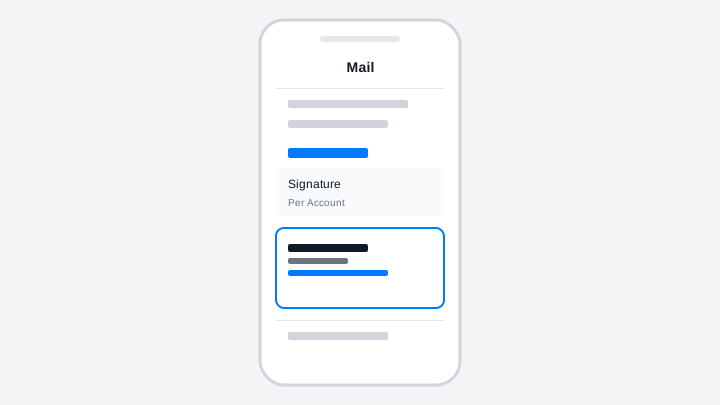
- Tap Signature (under the Composing section).
Step 5: Paste the Signature
- In the Signature field, tap and hold until the "Paste" option appears.
- Tap "Paste" — the signature will appear formatted just as you designed it.
- If you have multiple email accounts, choose "All Accounts" or "Per Account" to set signatures individually.
⚠ Note: Apple Mail on iPhone supports basic HTML signatures. Some advanced styling (like custom fonts or complex layouts) may not render exactly as in the SigCraft preview. Stick to the built-in templates for the best iPhone compatibility.
Step 6: Verify Your Signature
Open the Apple Mail app and compose a new email. Your signature should appear at the bottom. Send a test email to yourself to confirm everything looks correct on the receiving end.
Troubleshooting
Signature pasted as plain text
iPhone Mail does not always preserve HTML formatting when pasting. Try copying the signature from a browser on your iPhone (rather than from an email) and paste again. If that fails, you may need to set it up from a Mac.
Signature not showing up
Make sure you have set a default signature in Settings > Mail > Signature. If set to "Per Account," ensure each account has a signature selected.
Images not showing in sent emails
Like all email clients, Apple Mail blocks external images. Recipients will need to tap "Load Images" to see your avatar and social icons. This is normal behavior.
Frequently Asked Questions
Can I use the same signature across iPhone and iPad?
Yes. Apple Mail settings sync via iCloud, so a signature created on your iPhone will automatically appear on your iPad and Mac as long as you are signed into the same Apple ID.
Why does my signature look different in the Apple Mail app vs Gmail app?
The Apple Mail app and Gmail app use different rendering engines. Apple Mail supports more CSS, while the Gmail app strips most styling. Your SigCraft signature is designed to look good in both.
How do I remove a signature from my iPhone?
Go to Settings > Mail > Signature, tap "Clear All" to remove the current signature, or set "All Accounts" to "Per Account" to manage signatures individually.
Can I add images to my iPhone email signature?
iPhone Mail signatures support basic HTML including images, but the most reliable method is to copy a fully rendered signature from a browser or email rather than pasting raw HTML into Settings.